
I think that this is the first ‘technical’ post I am writing since I started blogging… or perhaps the second or third lol…

Why this post?
Well, in fact, I was googling a bit to look for some code which will allow me to Include Google Map into my posts, if ever I find the need to. There are some good tutorials and examples on the web, without forgetting the essential Google Map API documentation.
After successful implementation of what I initially needed, I wanted to share the code, together with simple explanations.
The final working map…
Click on the markers to display more information and related post.
http://maps.google.com/maps?file=api&v=2&key=ABQIAAAAI7Vxz9pxU2d5YuBAdVSblRQYmiTvB5o1FvWmH2lC4aTV_0LGDRSWGihr1otmY9mGb1poZe1O-ZqmqA
http://www.yashvinblogs.com/googlemaps.js
First tryout…
The most simplest way to include a google map onto any of your web page is to include the google map iframe into the page itself, nothing more easy than that!
Go to the Google Map Page and then, look for the location you want to display.

For instance, Type “Port Louis, Mauritius” into the search bar to locate it on the map.
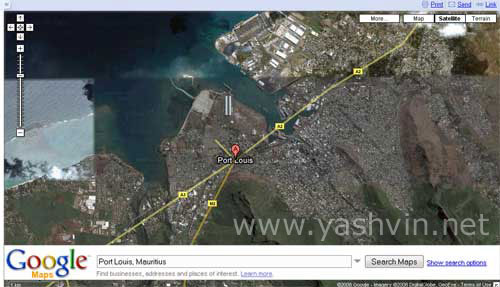
Click on the LINK as shown below to get the direct URL to this location or the Iframe code.

Now, just paste the iframe code into your html page, thats all, no need for any google map api or even html knowledge!
A bit more technical way of including google api
Now read this, if you want something more technical and precise, for instance adding markers and info windows on your google map (Just like I did above)
- Sign up for a google map api key
- Copy paste the code below into the head section of your web page.
- Modify the body of your page
http://maps.google.com/maps?file=api&v=2&key=yourkeyhere
//function load() {if (GBrowserIsCompatible()) { var map = new GMap2(document.getElementById("map")); // This is the actual url that has been copied from the Google Map page // http://www.google.com/maps?f=d&saddr=-20.168736, // 57.507591&daddr=-20.167653,57.508155&hl=en& // geocode=&mra=mi&mrsp=1&sz=18&sll=-20.168731,57.507581 // &sspn=0.002991,0.005686&ie=UTF8&t=h&ll=-20.167639,57.508026 // &spn=0.002991,0.005686&z=18 // where 17 is the zoom level map.setCenter(new GLatLng(-20.168731,57.507581), 17); // Adding the small overview map at the bottom map.addControl(new GSmallMapControl()); // Removing the unwanted map types from the display, // leaving only the Satellite mode ON map.removeMapType(G_HYBRID_MAP); map.removeMapType(G_NORMAL_MAP);}}//]]>
[...]body onload="load()" onunload="GUnload()" [...]
Adding Markers
Now, if you wish to mark some buildings or your car, lol, add the following code into the javascript function:
var markerDCDMC = new GMarker(new GLatLng(-20.168736, 57.507591));
map.addOverlay(markerDCDMC);
The code above will add a marker at the longitude and lattitude specfied.
If you wish to display an info box like in my final map when you click on the marker, add this:
var WINDOW_HTML_DCDM = 'your html code here into a div';

GEvent.addListener(markerDCDMC, "click", function() {
markerDCDMC.openInfoWindowHtml(WINDOW_HTML_DCDM);
});
You can add various markers on the same map, just take care to handle the code properly.
Disclamer (lol):
Hope this post will come useful for some of you, but please note that there may be other ways to do this, and perhaps, the way I showed you is not the correct way.
Anyway, as someone said : "Tous les chemins mènent à Rome"Thats all from me for today, see you later at the same url for another story taken from another page of my life...
 Yashvinblogs
may we should see the road are mapped corectly so i can use my N82 gps well
LikeLike
too nice ca kan avish perdi mo kav rode li
yushas last blog post..when avish is busy
LikeLike
Ena dimounes rode look par la fenetre using google earth 😛
LikeLike
Blog again 🙂 Extremely nice post. A good research work finalised by a top blog post. I’ll be messing with this too tonight and see how it works… Hope I can find my house LOL 🙂
@ Yusha: Eutaaa…. kan mo perdi???? Moi ki perdi???? Cot sa to ti perdi lot foi….mo dir?? 🙂
Avishs last blog post..What Is Blogging? Why Do You Blog??
LikeLike
You all may also be interested in the FREE step by step Google Maps tutorials on my website ( http://www.whiterocksolutions.com/ ).
We cover everything you want to know about using My Maps to add a map to your website or blog as well as more advanced API tutorials.
Kevin
White Rock Solutions
LikeLike
*tired of seeing google everywhere*
*calling Van Helsing for help in eradication of this google thing*
LOL
On a more serious note, there’s always Live Maps
– http://maps.live.com/ .
To help you embed Live Maps,
go to your live map,
select the location area, add your markings, gps, whatever,
copy the collection id (cid),
go to http://www.veteam.members.winisp.net/10MinuteMap/10MinuteMapPt2.htm ,
view the source,
copy it,
replace the cid,
paste the selection into your web site area.
Just showing you an alternative. Good day.
Shahs last blog post..London 2012 Olympics Web Site – It’s ugly
LikeLike
@ Daks – “Ena dimounes rode look par la fenetre using google earth ”
Yes, they use windows as OS. 😛
Shahs last blog post..London 2012 Olympics Web Site – It’s ugly
LikeLike
lol.. ene ans mone check sa api la.. 😛
pas tro envi regeutte sa enkor..
mais seki bomme.. mank data pou morice.. matte coz to pas gagne servi ene tas functionaliT couma traffic tousa.. normalment to capave set 2 point ousi lerla li dire toi ki way to capve pac pou alle labas ou mem to cpave fer ene algo ki montrE toi shortest path..
sinon si to ena traffic news ousi about mauritius.. to mem capve dan to algo try to contourne bannes area ki sanC blockE la..
anyway google map nice have fun toying with it..
to coummence mette disclamer tou haha
LikeLike
hahahha…..nice one shah lol :p
LikeLike
did you know the germin nuvi 200 has Mauritius map preloaded in it, its on sale at game
http://www.garmap.co.za/Info_AS2008MAUSM1.asp
LikeLike